Google Meet in a Tesla
To use Google Meet in a Tesla, open the meeting in the car's web browser while the car is parked: there is no Meet app in the car. CabinWork is a free app that puts your day's Meet links on the car's screen with a Join button, so there is no link to type.
Display is $4.99 a month or $29.99 a year in the US, with a 7-day free trial for new subscribers, bought in CabinWork for iPhone.
Download on the App StoreDownload for Mac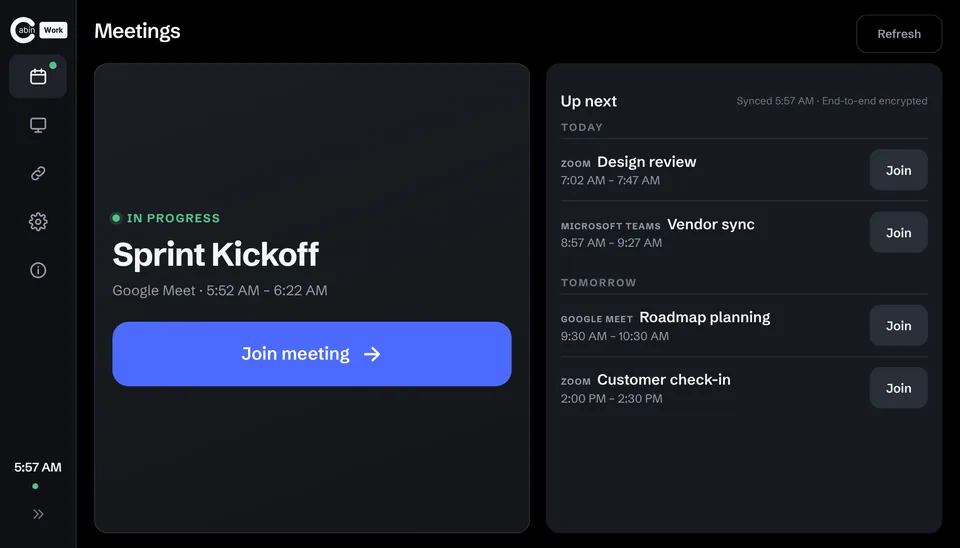
Parked use only. CabinWork is for a parked car. Never use video, meetings or the screen while driving.
What the car needs
Tesla's software from 2026.26 lets websites ask for the cabin camera and microphone while the car is parked, on cars with the AMD Ryzen computer (reported by Not a Tesla App). The car asks you to approve each request on screen. To see which computer your car has, open Controls, Software, Additional Vehicle Information on the car's screen.
The car's browser needs the car to be online: Tesla's Premium Connectivity, or Wi-Fi such as your phone's hotspot.
Google lists Chrome, Firefox, Edge and Safari as the browsers Meet supports (Google's requirements for Meet). The browser in our Model Y identifies itself as Chrome, and Meet opened in it. Tesla's browser is not on Google's list by name, so treat it as working but not promised.
Join a Meet call from the car's screen
- In the car's browser, open cabinwork.app. It shows a code and two words. The code lasts 10 minutes, and New code gives a fresh one.
- Scan the code with your iPhone and get CabinWork for iPhone. Check the two words match, then connect and allow calendar access.
- Your video meetings for the next 7 days appear on the car's screen. Tap Join and the meeting opens on Google's own site.
The Google account behind the meetings has to be one of the calendars on your iPhone. If you only use it inside another calendar app, add it under Settings, Apps, Calendar, Calendar Accounts.
What the car's screen shows
- The next 7 days. Only events with a video link are listed: Google Meet, Zoom, Microsoft Teams and Webex. A dentist appointment stays on your phone.
- The next meeting first. It sits at the top with a large Join button, so one tap is enough when you park two minutes before the hour.
- It keeps itself current. Your iPhone sends changes in the background. A meeting that moves shows its new time in the car, and Refresh on the car's screen asks for the list straight away.
- You choose how much is sent. In the iPhone app you can hide meeting titles, send today only, or leave out invitations you have not answered.
- A link that is not in your calendar. Choose Join by link on the car's screen and paste or type the meeting link.
Signing in
Google decides who can join a meeting without signing in. If a meeting asks for it, sign in to your Google account in the car's browser, and sign out again in a car you share.
Meet asks for the camera and microphone, and the car asks as well. Say yes to both. If you blocked Meet earlier, Google's page above shows how to allow it again.
Before a call that matters
- Run CabinWork's camera and microphone test on the car's screen once, so the car's permission prompts are out of the way.
- The cabin camera is aimed at the driver's seat.
- We have joined Google Meet calls from the browser in our Model Y, with the cabin camera working while the car was in Park. Which Meet features work there is up to Google, so start a test meeting with yourself first.
- A test costs two minutes: create a meeting in your calendar for ten minutes from now, wait for it to reach the car, and join it alone.
If a meeting does not show
- Check the event has a video link. An event with only a room or a phone number is not listed.
- The calendar has to be on your iPhone. If you only sign in inside another calendar app, add the account under Settings, Apps, Calendar, Calendar Accounts (Apple's guide to calendars on iPhone).
- Open CabinWork on the phone once to sync, then tap Refresh in the car.
- iOS does not wake an app that was swiped away in the app switcher. Leave CabinWork in the background, with Background App Refresh on and Low Power Mode off.
When you are done
- The car's browser plays video only in Park. Finish the call before you move the car.
- To take the same meeting on your phone, with its camera and microphone, use Join from this phone in the iPhone app.
- In a car you share, choose Disconnect and clear this screen under Setup. The meeting list stays on that screen until you do.
Questions
Does it work while driving?
No. CabinWork is for a parked car, and the car's camera is only available to websites while parked.
Does it cost anything?
No. Meetings in CabinWork is free and stays free, with no ads.
Does it use mobile data?
The meeting list is tiny. The call itself uses data like any video call, on the car's connection.
No iPhone?
On the car's screen choose Use a calendar address and enter your Google calendar's private iCal address. This works for personal calendars; work accounts often remove the meeting links.
Does CabinWork see my call?
No. CabinWork opens Google's own site, and Google runs the call. The meeting list is encrypted between your phone and the car. The privacy page says what is stored.
Sources
- Learn what requirements you need to use Google Meet, Google. The browsers Meet supports and the camera and microphone permission it needs.
- Set up multiple calendars on iPhone, Apple. Adding a work or personal calendar account to the iPhone.
- Tesla adds camera support to the browser in the 2026.26 update, Not a Tesla App. The report that websites may use the cabin camera and microphone while parked. This one is a news report, not Tesla's own page.
Display is $4.99 a month or $29.99 a year in the US, with a 7-day free trial for new subscribers, bought in CabinWork for iPhone.
Download on the App StoreDownload for Mac